Screen Recorder
Dragonfly includes a simple, easy-to-use screen recorder that lets you automatically record your full screen while working. The screen recorder, which can be used to make tutorial videos or to illustrate an issue you may experience with Dragonfly, does the following:
- Records your full screen in high-quality resolution in full color, with or without audio.
- Includes the option to include a lower resolution file with the original recording.
- Mouse highlighting spotlights the location of the cursor.
- Recordings can be saved in the MPEG4 (*.mp4 extension), AVI (*.avi extension), or animated GIF (*.gif extension) file formats.
Note When exporting to GIF, Dragonfly will first render the full sequence as an MPEG and then calculate the best color palette for the animated GIF, which is limited to 256 colors. You should note that the temporary MPEG will not be retained in memory.
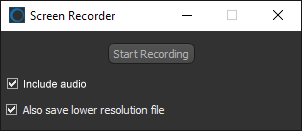
Choose Utilities > Screen Recorder on the menu bar to open the Screen Recorder dialog, shown below.
Screen Recorder
 How to Record Your Screen
- Choose Utilities > Screen Recorder on the menu bar to open the Screen Recorder dialog.
- Do the following, as required:
- Check the Include audio option, if you want to include a narration with your recording.
Note Your system must be equipped with a microphone to record audio.
- Check the Also save lower resolution file option, if you want to include a lower resolution file with the original high-quality recording.
- Check the Include audio option, if you want to include a narration with your recording.
- Click the Start Recording button.
- Choose a location and file name for saving the recording in the Save recording to File dialog and then click Save.
Note Recording will start automatically after you click Save.
- Perform all of the actions that you want to record.
- Click Stop Recording to end your recording.